Help Center › Android › Fill & Sign
Sign a PDF
Draw your handwritten signature, place it on any page and reuse it later.
Applies to Android 8.0 or later
Add your handwritten signature to a contract, form or any other PDF. Your signature is saved on the device so you can reuse it next time.
Open the signature pad
- Open the PDF, tap the tool group button in the middle of the top bar and choose Fill & Sign.
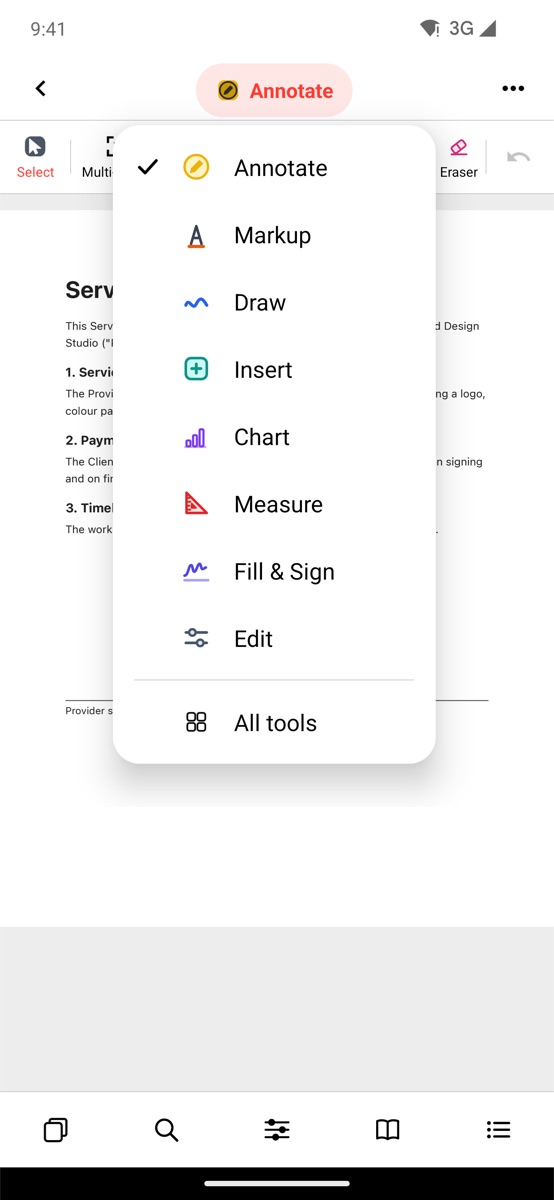
The tool group menu with Fill & Sign - Tap Signature in the tool dock below the top bar. If you can't see it, swipe the dock to the left.
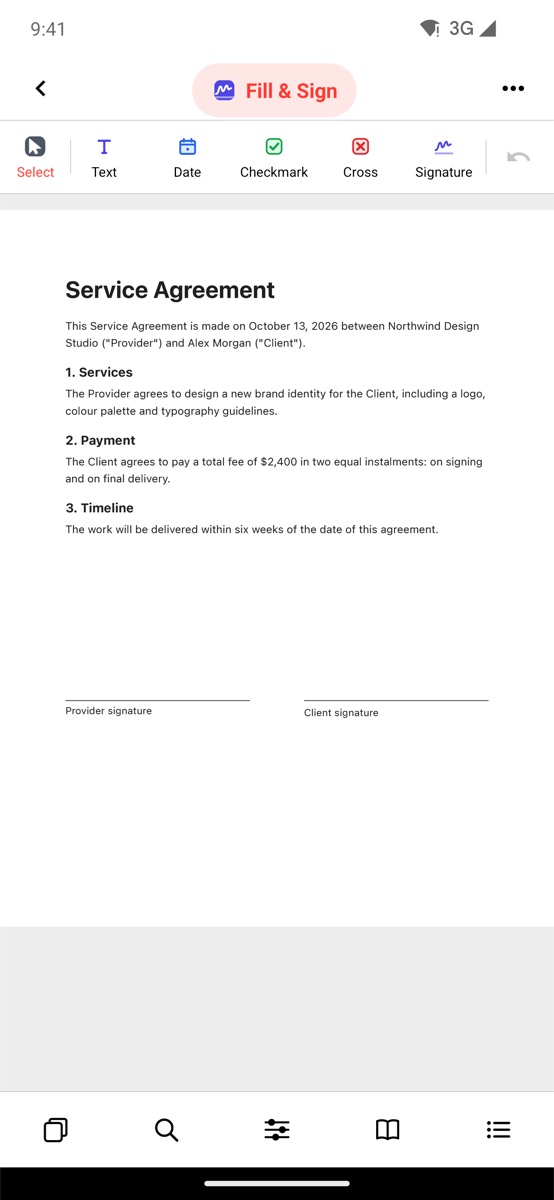
The Fill & Sign tools in the dock
Shortcut: open the Tools tab, tap eSign and pick a PDF. The editor opens with the signature pad ready.
Draw and place your signature
- On the Draw your signature screen, sign above the line with your finger or a stylus. Strokes get thicker when you draw slowly and thinner when you draw fast, like a real pen.
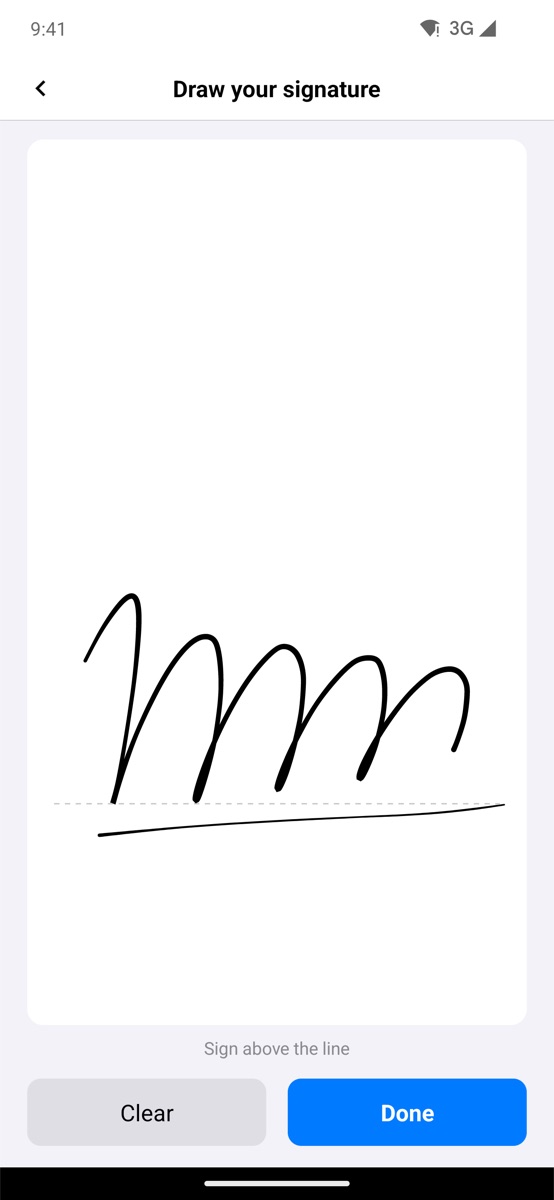
Drawing a signature on the pad - Not happy with it? Tap Clear and sign again. When you are done, tap Done.
- The signature is placed in the middle of the page you are viewing. Tap it to select it, then drag it onto the signature line.
- Use the handles around the selected signature: the blue handle resizes it, the green handle rotates it and the red handle deletes it. The colour bar above lets you change the ink colour.
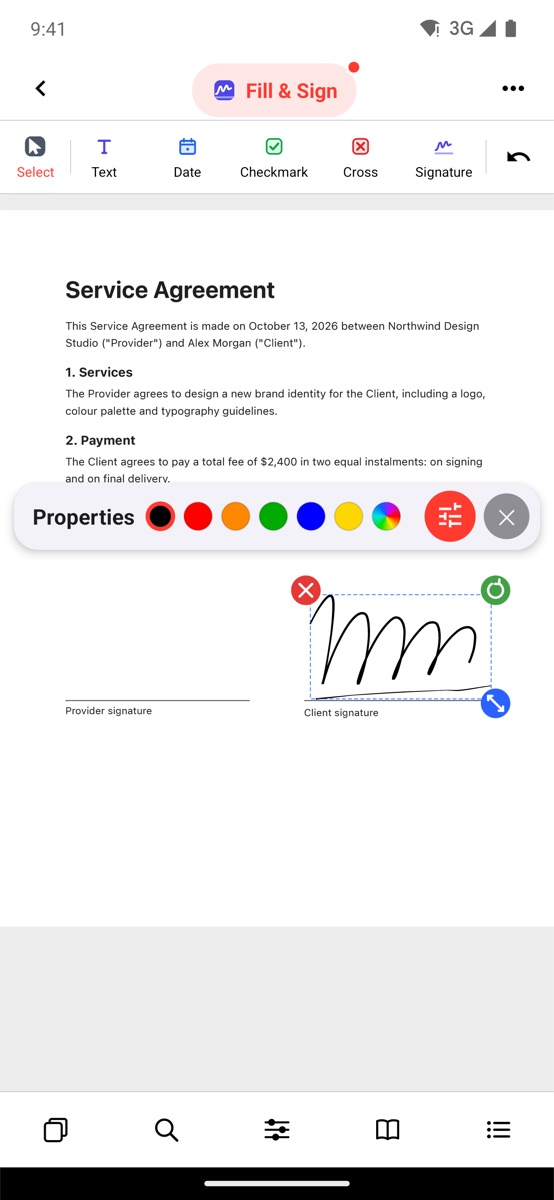
A selected signature with resize handles
Reuse a saved signature
- Every signature you draw is kept under Saved signatures at the top of the signature pad.
- Tap a saved signature to place it again without redrawing.
- To remove one, tap the small × on its thumbnail.
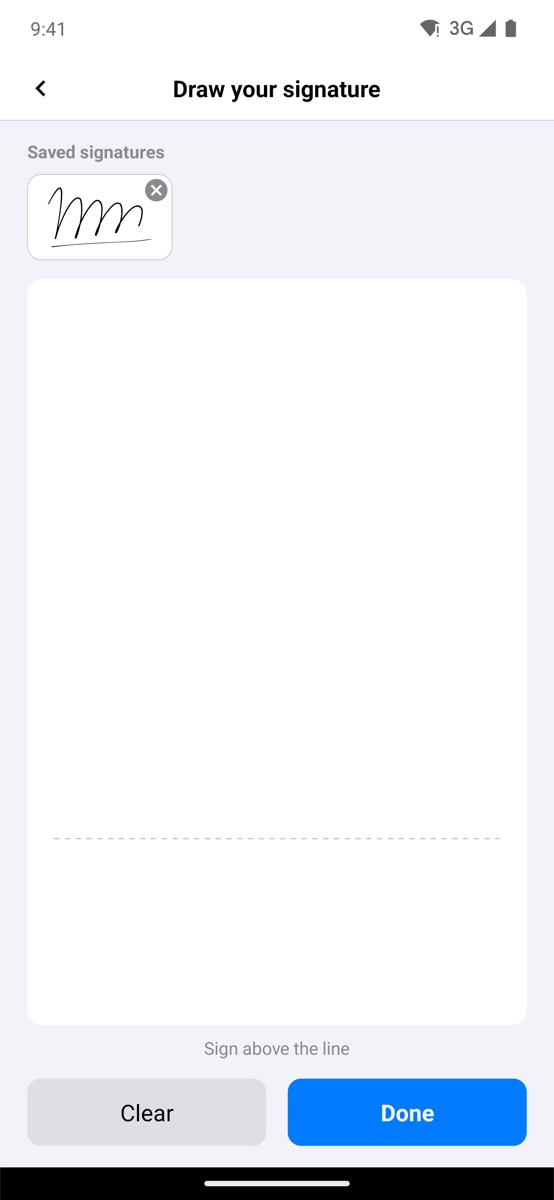
The saved signatures list
A Kiwi PDF signature is a handwritten image signature. It is not a certificate-based digital signature.
Related
- Fill in a form with text, dates and check marks
- Flatten a PDF so the signature can no longer be moved
- Protect a PDF with a password